Nutanix with External Storage part 1

Nutanix can make use of External storage as of mid 2025. This blog is intended to show how to use it and how to implement everything as it is a little bit different as the normal HCI platform. So let’s begin with explaining hot so install the nodes first. In a second blog I will show how to connect the storage and make use of it.
Since the beginning of Nutanix the way to foundation was always done though foundation VM or the Foundation applet (for a Windows or Apple computer).
Since some time Nutanix introduced Foundation Central (read my previous blog about that https://marcotubben.wixsite.com/marcosblog/post/foundation-central) to install bare metal nodes from a centralized service within Prism Central. This is easy to use for used systems that you want to redeploy.
Foundation Central 2.0 and 2.1 (including version 2.1.0.1) introduced a new workflow designed explicitly to simplify the deployment of Compute-Only clusters that connect to external storage (such as Everpure Storage or Dell PowerFlex) on AHV.
Currently, Foundation Central 2.1 does not support Hyper-Converged Infrastructure (HCI) or Storage-Only cluster deployments. Because of this, "Compute" is the only role available for selection during the node imaging workflow.
Foundation Central 1.10 / 1.11: If you are doing remote cluster deployments or deploying on Cisco Intersight-managed hardware where FC is required, you must use the 1.x branch of Foundation Central, which continues to support HCI deployments.
Recap Foundation Central :
So the focus of the Foundation Central 1.0 branch is focused on remote, "zero-touch" imaging of nodes that could communicate back to a central Prism Central instance, Foundation Central 2.0 (a.k.a. Appliance) adds robust image management and support for greenfield deployments where no previous Nutanix infrastructure exists.
Deploy Foundation Central Appliance
This is a pretty straight forward process : Download the ovf file from the download section of the Nutanix portal and import it into Virtual box and start the VM.
Once started find the setup icon on the desktop

On the VM page, right-click the VM and select Launch Console.
Login to the Foundation Central Appliance VM using the default user credentials (nutanix and nutanix/4u).
Double-click Run Nutanix Foundation Central 2.0 Appliance Setup icon.
The setup wizard opens.
Accept the EULA agreement.

Override the detected Static IP.

On the Appliance Setup Wizard > Network Configuration enter the following details and click OK:
Interface name: Default eth0
Static IP
Netmask
Gateway
DNS Server
The Foundation Central Appliance setup terminal opens. This will take a few minutes.
After the Foundation Central Appliance is set up, the SSH security screen is displayed prompting that the SSH will be disabled for all users on the host. Click OK.

On Firewall Port Configuration page, click OK.

On the Security Settings Applied screen, review the port details and click OK.

On the Mandatory Password Change Required screen, review the security requirement and the user types and click OK.

On the Password Setup for 'nutanix' screen, review the password requirements and enter a new password.

The password is validated on the Password Valid for 'nutanix' screen and prompted to confirm the password on the Password Confirmation screen.
On the Password Setup for 'admin' screen, set up the password for the admin user type and follow the prompt.
The Foundation Central Appliance setup completion screen is displayed. Click OK.

After this is done, start a brower and head to the IP which was just added to the appliance:
Create deployment

1st step : upload images

This is the place where you upload the AOS end AHV images

2nd stage : hardware provider
The hardware provider is basically the ipmi part. Ilo for HPE and iDRAC for Dell systems

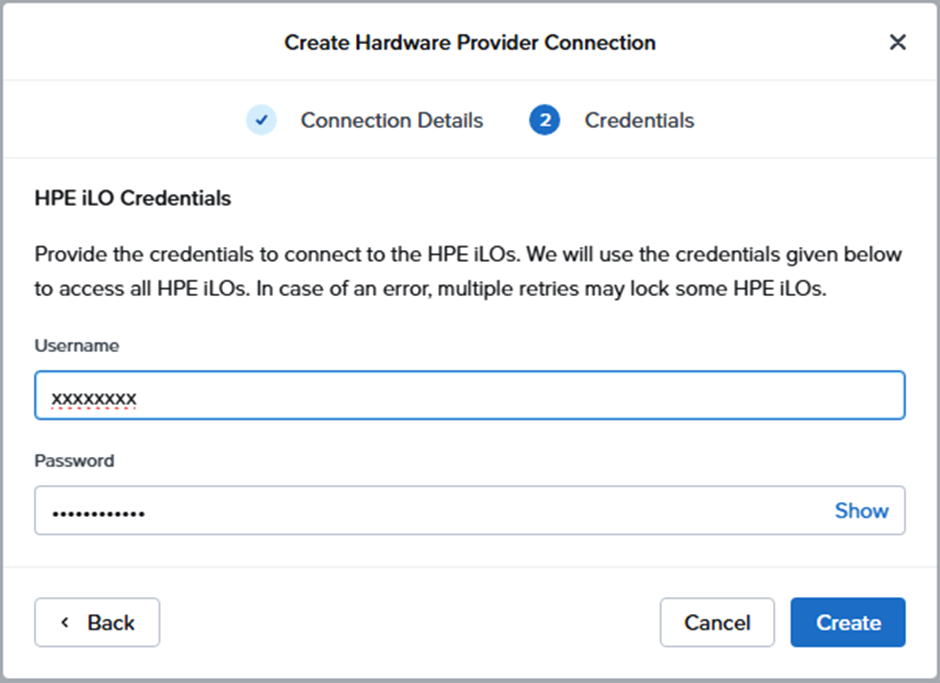

If everything is correct the nodes will be discovered

3rd stage Onboard nodes
This is the part where the nodes will be discovered and onboarded in Foundation


Nodes are onboarded

4th Stage : Image node(s)
This is the actual imaging / installation phase


Notice the role : It mentions Compute because this version of Foundation Central only
supports this kind of deployment : Nodes that use External Storage


If needed the cluster can be created as well. I personally prefer to create the cluster afterwards manually because most of the time I foundation the nodes in an remote site without access to NTP/DNS servers of the client environment, but if the nodes can already contact these services after imaging then this is the place to enter the cluster parameters.
The node will be imaged with the selected AOS/AHV versions
At the time of writing this article it is also possible to install the nodes with the normal Foundation VM. This is needed in environments where for instance the IPMI and host VLAN are not routed so the foundation appliance cannot access both VLANs
Mind that also in Foundation VM the compute option is selected and NOT Hyperconverged clusters as this is the default option,choose Computer clusters (this requires external storage) !

Now is the time to create the cluster, these is standard procedure just like ordinary Nutanix clusters. Is the cluster is configured correctly than the External storage part can begin
To be continued in part 2 ............................


Comments